Windows Secure Boot certificates are set to expire in June 2026, which could prevent some systems from booting if the certificates aren’t updated.
This article give some direction on how to update the secure boot certificates in combination with Nutanix AHV.
Check Certificate
Check if the certificate is present:
[System.Text.Encoding]::ASCII.GetString((Get-SecureBootUEFI db).bytes) -match ‘Windows UEFI CA 2023’If the returned value is true the certificate is already updated
(Source: Updating Microsoft Secure Boot keys | Windows IT Pro blog)
There are some powershell scripts that display the certificates available. My work here is still in progress.
e.g. from Dell: How To Check Secure Boot Certificates | Dell US
If the Certificate is not updates the following steps will help.
Step 1: Upgrade Nutanix to AHV 10.3.1
Upgrade AOS to 7.3.1 (AHV 10.3.1+)
See: AHV: Microsoft certificates for Secure Boot expire in June 2026
How to Upgrade to Nutanix AOS 7.3
Use the Life Cycle Manager (LCM) in the Prism web console for a guided, in-place upgrade. Make sure to review:
Step 2: Enable Certificate Updates in Windows OS
The Windows OS must be fully patched..
Set the following Registry Key to deploy all needed certificates and update to the Windows UEFI CA 2023 signed boot manager.
Set-ItemProperty -Path ‘HKLM:\SYSTEM\CurrentControlSet\Control\SecureBoot’ -Name ‘AvailableUpdates’ -Value 0x5944This Key tells the system to check and deploy the needed certificates
| Registry Value | Type | Description and Usage |
| AvailableUpdates | REG_DWORD (bitmask) | Update trigger flags. Controls which Secure Boot update actions to perform on the device. Setting the appropriate bitfield here initiates the deployment of new Secure Boot certificates and related updates. For enterprise deployment, this should be set to 0x5944 (hex) – a value that enables all relevant updates (adding the new 2023 CA certificates, updating the KEK, and installing the new boot manager). Settings: 0 or not set – No Secure Boot key update are performed. 0x5944 – Deploy all needed certificates and update to the PCA2023 signed boot manager |
After settings the registry Key run the Scheduled Task:
Start-ScheduledTask -TaskName ‘\Microsoft\Windows\PI\Secure-Boot-Update’This task would automatically be run every 12 hours after windows startup. So this should happen automatically.
Step 3: Toggle Secure Boot Setting on VM in Prism Central
Option A: Prism Central GUI
Select the VM -> Update -> General Configuration
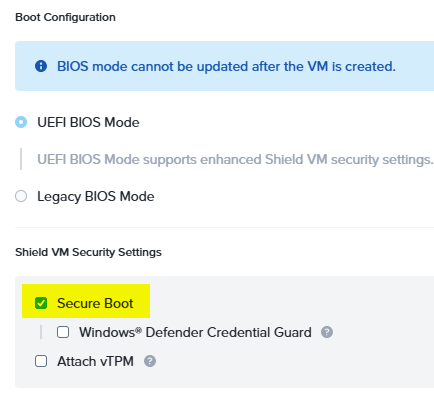
De-Select the Secure Boot Option -> Save
And then directly re-enable Secure boot again
Option B: ACLI
Disable and re-Enable Secure Boot via ACLI:
Again shut down the VM(s) you want to update and do the following on a CVM in the cluster for each VM.
acli vm.update <vm_name> secure_boot=false
acli vm.update <vm_name> secure_boot=true
Step 4: Reboot and check Status
After starting the VM the Registry Key HKEY_LOCAL_MACHINE\SYSTEM\CurrentControlSet\Control\Secureboot /v AvailableUpdates should be 0x4100
After starting the VM re-run the schedules task again.
Start-ScheduledTask -TaskName ‘\Microsoft\Windows\PI\Secure-Boot-Update’Remember: The scheduled task will run on its own every 12 hours.
After this another reboot is probably needed.
Check the Status of the update:
All Secure Boot registry keys described below are located under this registry path: HKEY_LOCAL_MACHINE\SYSTEM\CurrentControlSet\Control\SecureBoot\Servicing
Secure Boot certificate deployment support
Source: Secure Boot Certificate updates: Guidance for IT professionals and organizations – Microsoft Support
In support of the Secure Boot certificate updates, Windows maintains a scheduled task that runs once every 12 hours. The task looks for bits in the AvailableUpdates registry key that needs processing. The bits of interest used in deploying the certificates are in the following table. The Order column indicates the order that the bits are processed.
| Order | Bit setting | Usage |
| 1 | 0x0040 | This bit tells the scheduled task to add the Windows UEFI CA 2023 certificate to the Secure Boot DB. This allows Windows to trust boot managers signed by this certificate. |
| 2 | 0x0800 | This bit tells the scheduled task to apply the Microsoft Option ROM UEFI CA 2023 to the DB. If 0x4000 is also set, then the scheduled task will check the DB and will only apply Microsoft UEFI CA 2023 if it finds Microsoft Corporation UEFI CA 2011 already in the DB. |
| 3 | 0x1000 | This bit tells the scheduled task to apply the Microsoft UEFI CA 2023 to the DB. If 0x4000 is also set, then the scheduled task will check the DB and will only apply Microsoft Option ROM UEFI CA 2023 if it finds Microsoft Corporation UEFI CA 2011 already in the DB. |
| 2 & 3 | 0x4000 | This bit modifies the behavior of the 0x0800 and 0x1000 bits to only apply the Microsoft UEFI CA 2023 and Microsoft Option ROM UEFI CA 2023 if the DB already has the Microsoft Corporation UEFI CA 2011. To ensure that the device’s security profile remains the same, this bit only applies these new certificates only if the device trusted the Microsoft Corporation UEFI CA 2011 certificate. Not all Windows devices trust this certificate. |
| 4 | 0x0004 | This bit tells the scheduled task to look for a Key Exchange Key signed by the device’s Platform Key (PK). The PK is managed by the OEM. OEMs sign the Microsoft KEK with their PK and deliver it to Microsoft where it is included in the cumulative updates. |
| 5 | 0x0100 | This bit tells the scheduled task to apply the boot manager, signed by the Windows UEFI CA 2023, to the boot partition. This will replace the Microsoft Windows Production PCA 2011 signed boot manager. |
Each of the bits is processed by the scheduled event in the order given in the table above.
The progression through the bits should look like this:
- Start: 0x5944
- 0x0040 → 0x5904 (Applied the Windows UEFI CA 2023 successfully)
- 0x0800 → 0x5104 (Applied the Microsoft Option ROM UEFI CA 2023 if needed)
- 0x1000 → 0x4104 (Applied the Microsoft UEFI CA 2023 if needed)
- 0x0004 → 0x4100 (Applied the Microsoft Corporation KEK 2K CA 2023)
- 0x0100 → 0x4000 (Applied the Windows UEFI CA 2023 signed boot manager)
Notes
- Once the operation associated with a bit completes successfully, that bit is cleared from the AvailableUpdates key.
- If one of these operations fail, an event is logged, and the operation is retried the next time the scheduled task runs.
- If bit 0x4000 is set, it will not be cleared. After all other bits have been processed, the AvailableUpdates registry key will be set to 0x4000.
Other Options to start the certificate Upgrade process instead of registry
Source: Secure Boot playbook for certificates expiring in 2026
Option 1: Deploy certificates using Microsoft Intune
You can deploy, manage, and monitor Secure Boot certificate updates in Microsoft Intune. Three settings are available, and disabled by default, in the Secure Boot category located in the settings picker:
- Enable SecureBoot Certificate Updates – This policy controls whether Windows initiates the Secure Boot certificate deployment process on devices.
- Configure Microsoft Update Managed Opt In – This policy allows your organization to participate in aControlled Feature Rollout of Secure Boot certificate update managed by Microsoft.
- Configure High Confidence Opt-Out – This policy controls whether Secure Boot certificate updates are applied automatically through Windows monthly security and non-security updates.
For more detailed information on each of these settings, and how to configure them in Intune, see Microsoft Intune method of Secure Boot for Windows devices with IT-managed updates.
Option 2: Deploy certificates via Windows Configuration System (WinCS)
New command-line tools are now available for domain-joined clients on Windows 11, versions 25H2, 24H2, and 23H2.
These include both a traditional executable and a PowerShell module to query and apply Secure Boot configurations locally to a device. For step-by-step guidance, see Windows Configuration System (WinCS) APIs for Secure Boot.
Deploy the Secure Boot updates via WinCS:
- Feature name: Feature_AllKeysAndBootMgrByWinCS
- WinCS key value: F33E0C8E002
- Secure Boot configuration state: Enabled
Option 3: Deploy certificates using Group Policy
Group Policy settings are available by navigating to:
Computer Configuration > Administrative Templates > Windows Components > Secure Boot.
To apply Secure Boot updates to devices using Group Policy, set the Enable Secure Boot certificate deployment policy to Enabled. This lets Windows automatically begin the certificate deployment process. This setting corresponds to the registry key AvailableUpdates.
Be sure to get the latest version of the .admx for Windows 11 and Windows Server. For more details, see Group Policy Objects (GPO) method of Secure Boot for Windows devices with IT-managed updates.
Helpful Links:
- Secure Boot Certificate updates: Guidance for IT professionals and organizations – Microsoft Support
- Registry key updates for Secure Boot: Windows devices with IT-managed updates – Microsoft Support
- Secure Boot playbook for certificates expiring in 2026
- Updating Microsoft Secure Boot keys | Windows IT Pro blog
- Secure Boot DB and DBX variable update events – Microsoft Support
- Certificates | Dell US